Ax309 Xilinx Spartan-6 Development Board Users Manual
- Development Board Dubai
- Xilinx Spartan 6 Development Board
- Ax309 Xilinx Spartan-6 Development Board User's Manual Pdf
- Ax309 Xilinx Spartan-6 Development Board User's Manual 2016
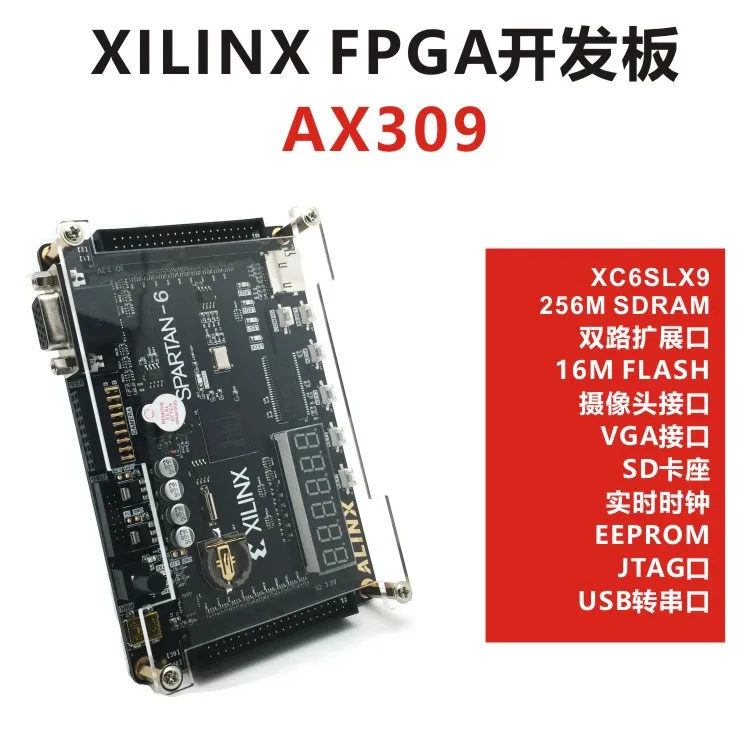
ALINX AX309 Xilinx FPGA development Spartan6 XC6SLX9 Spartan-6 advanced Kit
Xilinx Spartan-6 XC6SLX9 FPGA. eBay! Reference designs are included with the kit to exercise standard peripherals on the evaluation board for a quick start to device familiarization.AX309 Development Board Users Manual. The AX309 development board provides a complete hardware environment for designers to accelerate their time to market.The kit delivers a stable platform to develop and test designs targeted to the low-cost and low-power Xilinx Spartan-6 FPGA.
Introduction
The purpose of this manual is to describe the functionality and contents of the AX309 development board. This document includes instructions for operating the board, descriptions of the hardware features, and explanations of the test code programmed into the on-board programmable memory. For reference design documentation and example projects, see the official website:www(dot)LogiFind(dot)com
Description
The AX309 development board provides a complete hardware environment for designers to accelerate their time to market.The kit delivers a stable platform to develop and test designs targeted to the low-cost and low-power Xilinx Spartan-6 FPGA. The installed Spartan-6 FPGA LX9 device offers a prototyping environment to effectively demonstrate the enhanced benefits of low-cost Xilinx FPGA solutions. Reference designs are included with the kit to exercise standard peripherals on the evaluation board for a quick start to device familiarization.
The AX309 development board contains the following individual pieces:
--The easyFPGA-Spartan-6 development board
--USB 2.0 cable
--Xilinx ISE® Design Suite (IDS) 14.7
--Example Source Code
--AX309 Development Board Users Manual
--Transparent protection board
Please note that this kit does NOT include a Xilinx programming cable.
Block Diagram of the Board
Figure 1 gives the block diagram of the AX309 development board. To provide maximum flexibility for the user, all connections are made through the Xilinx Spartan-6 FPGA device. Thus, the user can configure the FPGA to implement any system design.
Figure 1.Block Diagram
Following is more detailed information about the blocks in Figure 1:
FPGA
--Xilinx Spartan-6 XC6SLX9 FPGA
JTAG Port
--On-board JTAG Port for programming
SDRAM
--256Mbit SDRAM
SPI Flash memory
--64Mbit SPI FLASH
Camera Port
--Supports 5000000 pixels OV5640 module
Pushbutton switches
--4 User Keys
--Normally high; generates one active-low pulse when the switch is pressed
General User Interfaces
--4 User LEDs
--6-digit 7-segment displays
--Buzzer
System Clock inputs
--50MHz oscillator
RTC Module
--Comes with a CR1220 battery socket
External Eeprom
--Comes with a 24LC04;
VGA output
--Uses a 16-bit resistor-network DAC under RGB65536 Mode
--With 15-pin high-density D-sub connector
Voltage Regulator Circuit
--Provides 1.2V,5V and 3.3V for system power supply
Micro SD
--Equips a Micro SD card holder.
On-board USB to TTL/RS232 Module
--Use cp2102 for USB-TTL/RS232 Converting (Without DB-9 serial connector)
40-PIN Expansion Headers
--Two Channels 40-PIN Expansion Headers Spartan-6 I/O pins, as well as 3 power and ground lines, are brought out to the 40-pin expansion connectors. You can install 4.3”TFT module and AD/DA module by our company on this two expansion headers.
What’s on Board
A photograph of the AX309 development board is shown in following Figure 3. It depicts the layout of the board and indicates the location of the connectors and key components.
The following hardware is provided on the AX309 development board:
Tab1.Baord Source
1 | Xilinx XC6SLX9 | 2 | 256Mbit SDRAM |
3 | FLASH 16Mbit | 4 | USB to UART cp2102 |
5 | USB/USB Power | 6 | Power Switch |
7 | JTAG Port | 8 | Camera Port |
9 | VGA Port | 10 | SD card |
11 | RTC DS1302 | 12 | Reset and 4 User Buttons |
13 | 6-digit LED Display | 14 | EEPROM 24LC04 |
15 | 4 User LEDs | 16 | 50Mhz System Clock |
17 | Buzzer | 18 | Power Circuit |
19 | 40PIN Expansion Port | 20 | 40PIN Expansion Port |
About User Manual
We provide easy-to-read pdf in english for you.
Select Proper Kit for your project
Successful Hello World!
I can now program FPGA!! Well, I can copy someone else's example code and get it to work on my device. Check out this excellent video which shows how to write VHDL to make an LED blink:
When following that tutorial you simply need to select the correct hardware:
For the pinout you need to look at the FPGA Development Board PDF schematics found here:

The pinouts are shown on page 6:
I know from other parts of that document that the crystal oscillator is connected to the FPGA_CLK signal and the LED I'm targeting is connected to IO12. These correspond to P56 and P134 which are used in the pins file.
Here is the code that allowed me to get an LED blinking. Note that this is designed for a 50MHz oscillator but this board actually has a 20MHz oscillator. For this example I don't care about the timing error.
LED_Blink.vhd:
pins.ucf:
That's it! Hello Word!
iMPACT cable lock error
I was able to poll the FPGA using the Platfrom Cable USB but then all of the sudden I wasn't. I would get the error telling me that the cable was being used by another application. This bug report shows how to clear a bad cable lock: http://www.xilinx.com/support/answers/21931.htm
Development Board Dubai
Installing Xilinx Platform Cable USB Drivers for Linux
Hey, more Linux fun to get Xilinx drivers working on a 'non-supported' platform (Ubuntu).
Trying to run the cable driver install script bombs out. Finding my way to a workaround for this really really really sucked. I think i have at least 2 hours into this. Finally found this page.. follow it religiously:
http://www.george-smart.co.uk/wiki/Xilinx_JTAG_Linux#Installing_Xilinx_ISE
Launching ISE Design Suite
After going through the ISE Design Suite installation process I'm left with no apparent way to launch the software. I found this thread to help a bit: http://stackoverflow.com/questions/15119734/how-to-launch-xilinx-ise-web-pack-under-ubuntu
1) Navigate to the Xilinx ISE install directory
2) Run the setup file './settings64.sh' (you may need to chmod +x that file first)
3) Run ./ISE in the ISE_DS/bin/lin64 directory
Xilinx Spartan 6 Development Board
Guess what? When you click okay it doesn't launch the configuration manager like it says it's going to.
4) Add the 'Xilinx/14.7/ISE_DS/common/bin/lin64/' directory to your path then run ./ise again. This time dismissing the error window will launch the license manager.
5) Generate a free ISE WebPACK license by going here: http://www.xilinx.com/getlicense
6) Download the license that Xilinx emailed to you into your ~/.Xilinx/. directory
7) On the Xilinx License Configuration Manager hit the refresh button at the bottom. This should give you a few green boxes in the Version Limit column. Now hit close
Now when you launch ISE there should be no license error.
Install Xilinx ISE Design Suite
Xilinx offers software for Windows or Linux. I'm a Linux-only person so I went that route. Here's how I set up the ISE Design Suite under Linux Mint 17:
I downloaded the 'ISE Design Suite' 'Full Installer for Linux' from the middle of this page: http://www.xilinx.com/support/download/index.html/content/xilinx/en/downloadNav/design-tools.html
The package is about 6.8 GB so download ahead of time.
1) untar the install package to a large partition
2) edited the 'xsetup' file so that it reads '#!/bin/bash' at the top of the file
3) run 'sudo ./xsetup' and the GUI installer will run
4) I chose not to install to the /opt directory. <strikethrough>If you want it installed there you either need to run the installer as sudo or create the Xilinx directory and set permissions to allow your user account to write to it.</strikethrough> You need to run the installer as sudo or it will bomb out at the end of the process.
5) The installer will take a very long time to complete. Verizon convoy 4 user manual. In my case it was about 75 minutes.
I went through the entire installation process (75 minutes) and at the end was greeted with a pop-up that said 'driver installation failed because you don't have root priviledges'. No problem, I'll just install the cable drivers as sudo and fix it! Nope, when I went to do that it told me that the Xilinx directory already existed and I would need to choose a different location. Really Xilinx? Doesn't it seem like you should perform the root privilege test at the beginning of the process instead of bombing out at the end?
Really Xilinx? Really?
This board has a Xilinx Spartan-6 on it. So in essence, when you buy a board you have already purchased the hardware from Xilinx. So it's nice to see they have a free IDE called Vivado.
But when you go to download it you get the shakedown about non-export and what your corporate address and application are. These are mandatory fields you must fill in before download the software. I haven't done a thing with the hardware yet and I already have a sour taste in my mouth.
Getting the Vivado installer running on Ubuntu
Installer crashes on Ubuntu. This thread yields the following commands which are a workaround.
Ax309 Xilinx Spartan-6 Development Board User's Manual Pdf
Now edit the xsetup file and replace '#!/bin/sh' with '#!/bin/bash'
Ax309 Xilinx Spartan-6 Development Board User's Manual 2016
Now the GUI setup window will launch. I didn't run as sudo the first time and a couple of screens in the GUI complains about write permisisons for /opt/Xilinx.
Check that download size and disk space. I'm trying to blink and LED and I've got a 1.89 GB download standing in my way? Maybe this is commonplace for the FPGA crowd, but I'm a fan of programming for embedded using a text editor and makefile (okay, I do use Eclipse more regularly these days but you know what I'm talking about).
As I said above, this does me no good because I have a Spartan-6 I'm trying to work with. I'll post another log on how to install ISE Design Suite.